











 Power Distribution System
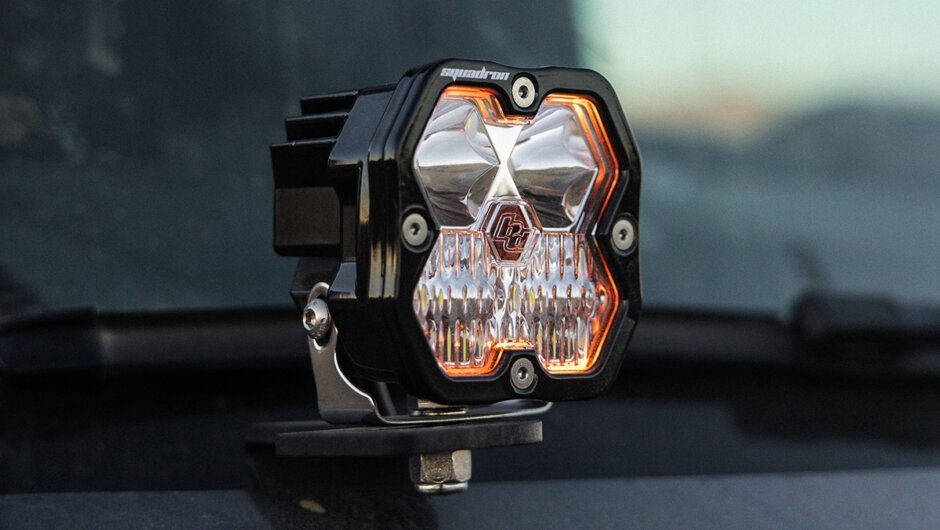
The Squadron 2.0’s programmable backlight just got even better. New firmware update adds color locking, locked-color strobing, and multi-light resync and it now ships standard on every Squadron 2.0.
WHAT’S NEW
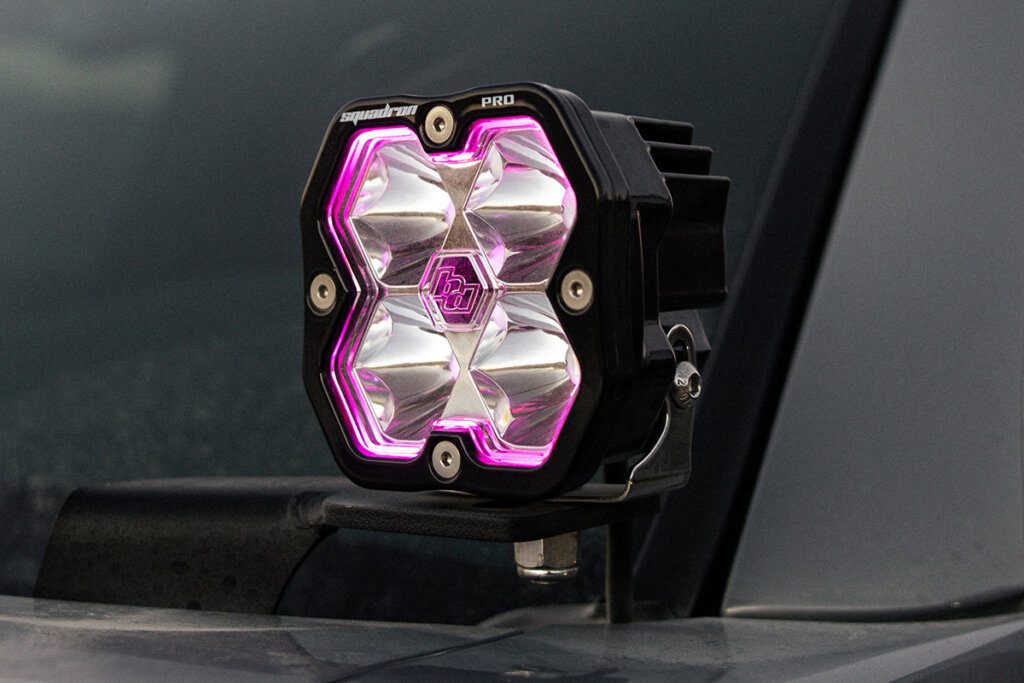
When we launched the Squadron 2.0, the nine-color programmable backlight quickly became one of its most talked-about features. Now we’re taking it further. The latest backlight firmware adds a new layer of control the ability to lock your color in place and run strobe or flash patterns in any of the nine programmable colors you choose.
Here’s what the new firmware unlocks:
Color Lock — Set any of the nine programmable colors and lock it in place. Your color stays exactly where you set it, every start-up, every drive.
Strobe Any Color — With the color locked, you can now strobe or flash the backlight in the exact color you chose — a first for the Squadron 2.0 platform.
Easy Resync — Running multiple lights off one switch? A new reset sequence brings every light back to baseline in under a minute, so your whole Squadron 2.0 backlight matches.
LOOK FOR THE YELLOW DOT. Every Squadron 2.0 now ships standard with the new backlight firmware. The easiest way to confirm yours has it: check for the yellow dot on the label of your Squadron 2.0 box. Want to add these features to an earlier Squadron 2.0? Reach out to us at [email protected].
CHANGING THE BACKLIGHT COLOR
The backlight sequence hasn’t changed as everything runs off your backlight switch. No apps, no tools, no wiring changes.
1. Turn the backlight off for 3 or more seconds.
2. Turn the backlight on and off 4 times to enter backlight changing mode.
3. Cycle the backlight on and off until the desired color is active.
4. To save the active color, either leave the backlight active for longer than 10 seconds, or turn the backlight off for longer than 3 seconds.
LOCKING YOUR BACKLIGHT COLOR
Locking your backlight color is the big upgrade here, it keeps your color set exactly where you want it and allows for strobing and flashing in that color. To unlock later to change the desired color, follow the “Unlocking the Backlight Color” steps below.
1. Set and save the backlight color you want to lock.
2. Turn the backlight off for 5 seconds.
3. Turn the backlight on and wait for 10 seconds.
Counting Mississippi out loud actually helps with the timing. We’re serious.
4. Cycle the backlight on and off 5 times, finishing with the backlight on.
If done successfully, the backlight will flash rapidly 3 times. If not, repeat the sequence either wait slightly longer before cycling, or cycle more quickly.
UNLOCKING THE BACKLIGHT COLOR
Want to pick a new color? Unlock it first:
1. Turn the backlight off for 5 seconds.
2. Turn the backlight on and wait for 10 seconds.
3. After 10 seconds, quickly cycle the backlight on and off 5 times.
A successful unlock is confirmed by 3 rapid flashes. If it doesn’t take, repeat adjusting your wait time or cycling speed.
4. Follow the “Changing the Backlight Color” steps above to set your new color.
RESYNCING MULTIPLE LIGHTS
Controlling multiple Squadron 2.0s from a single switch? The new firmware makes it easy to bring every backlight to the same color in seconds:
1. Turn the backlight off for 3 or more seconds.
2. Turn the backlight on and off 4 times to enter backlight changing mode.
3. Quickly cycle the backlight on and off to run through all color options. After 3 full cycles, every light defaults to Amber and stops cycling.
4. With every light defaults to Amber, follow the color-change steps to set them all to your desired color together.
PRO TIP: Setting different colors on different lights? Disconnect all other lights from the circuit, set and lock one light at a time, then repeat for each..
FREQUENTLY ASKED QUESTIONS
Q: Why do my backlight colors keep changing?
A: If the backlight is triggered via a DRL or accessory circuit, starting the vehicle may turn that circuit on and off in a way that mimics the color-changing sequence. Corner illumination can do the same thing. The fix: set your desired color, then lock it.
Q: Why does my color change when I strobe or flash the backlight?
A: Strobing an unlocked backlight can mimic the color-change steps. Lock the color first using the steps above, then strobe away.
Q: Why can’t I change my backlight color?
A: It’s very likely locked. To test, quickly turn the backlight on and off 5 or more times. If the color doesn’t change, follow the “Unlocking the Backlight Color” steps.
Q: Can I set my backlights to different colors?
A: Yes. We recommend setting each light individually — disconnect all other lights from the circuit, set the backlight color, lock it, and repeat for each light.
Q: My Squadron 2.0 doesn’t have these features. Why?
A: You likely have a Squadron 2.0 with the original backlight firmware. Send us the light and we’ll add the new features. Call 760.560.2252 or email [email protected] to set it up.
QUESTIONS? WE’RE HERE.
Whether you’re wanting to add the new firmware to an earlier Squadron 2.0 or dialing in a multi-light setup, our team has you covered. Email [email protected] or call 760.560.2252.
.